Ever forget to send an attachment to someone? The following code will search your outgoing message text for the word "attach." You can add as many words as you want. The code needs to go in the ThisOutlookSession module in Outlook VBA; make sure macro security is not set to High.
Private Sub Application_ItemSend(ByVal Item as Object, Cancel as Boolean)
If Instr(1, Item.Body, "attach", vbTextCompare) > 0 Then
If Item.Attachments.Count = 0 Then
MsgBox "You forgot the attachment."
Cancel = True
End If
End If
End Sub
For more examples of VBA using Outlook, check out Sue Mosher's site OutlookCode.
Tuesday, October 26, 2004


Microsoft Access Performance Considerations
While Access is certainly NOT an enterprise solution for databases, it can certainly provide small to medium size businesses with a very valid solution for their database needs. It's very common to read discussions about how Access cannot handle a multi-user environment or is too slow to use across the network. Most of the time, I find there are major design flaws with the databases these people are using. For most developer, there a few simple configurations and code tricks that can be used to attain reasonable performance from Access.
First, it is VERY possible to create a successful client/server application using linked tables for up to 20 concurrent users. But there are lots of details you must fix to be successful. To get good performance, it's all about keeping the "wire" cool -- that is, making sure you minimize the amount of data you ask JET to fetch and the number of threads you have open to the file server.
One of the most insidious "wire" eaters in Access 2000 and later is the silly Subdatasheet feature. If you leave SubdatasheetName set to [Auto], Access opens an extra thread AND fetches the rows for any recordset built on the table. You'll see a dramatic improvement in performance if you go to all the tables in the data file on the server and set this property for each table to [None].
You must also design your application to minimize the data fetched to the client machine. It is NOT true that JET on the client always does a full table scan. If you apply a filter on an indexed field, JET first fetches the index blocks and then sends specific requests to the file server for the data pages it needs to satisfy the request. So, it's important to both define appropriate indexes on your tables AND to NEVER request "all the tea in china" by opening a form or report unfiltered.
You should design custom "query by form" forms into your application that prompt the user to focus on the records needed for the task at hand, and the QBF code should refuse to proceed unless the user specified at least one filter value. You should also avoid any combo boxes that return more than about 200 rows. Although Access does try to optimize the combo box row source by not fetching all the rows until the user types in the box or drops it down, fetching 1000+ rows in a combo box is a performance killer. Most successful applications provide a way for the user to filter the combo first - for example, by selecting a product category that then filters the product name list. One alternative is to write code in the Change event to lookup the closest value for the user as the user types the entry they want. Single probes via DLookup are much more efficient than fetching the 1000+ row recordset.
In applications that might release the last active thread by returning to an unbound switchboard, performance can be improved by keeping one recordset open in code as long as the application is running. When you close the last bound form or report, Access releases the thread to the server - and if someone else has the data database open, it can take seconds to reopen the thread. If you keep a thread open, other processes in the application will share the open thread.
For reports, consider fetching the "unnormalized" report data to a local table and bind the report to that. Depending on how your report is designed, the report engine can end up fetching all the data from the server four or five times before it displays the result. Also, if you open a large report in Print Preview and the user pages back and forth in the result, the report engine will fetch the data several times again.
Be advised that "upsizing" to SQL Server is not a panacea. If your appication is badly designed for client/server, it won't run any better on SQL Server, and might actually run worse. You should upsize only when you need to manage more than 200 meg of data, you need true security, or you need to support more than 20 simultaneous users.
As for lookups - don't use them, at least not in table definitions. Check out my previous discussion for more information.
First, it is VERY possible to create a successful client/server application using linked tables for up to 20 concurrent users. But there are lots of details you must fix to be successful. To get good performance, it's all about keeping the "wire" cool -- that is, making sure you minimize the amount of data you ask JET to fetch and the number of threads you have open to the file server.
One of the most insidious "wire" eaters in Access 2000 and later is the silly Subdatasheet feature. If you leave SubdatasheetName set to [Auto], Access opens an extra thread AND fetches the rows for any recordset built on the table. You'll see a dramatic improvement in performance if you go to all the tables in the data file on the server and set this property for each table to [None].
You must also design your application to minimize the data fetched to the client machine. It is NOT true that JET on the client always does a full table scan. If you apply a filter on an indexed field, JET first fetches the index blocks and then sends specific requests to the file server for the data pages it needs to satisfy the request. So, it's important to both define appropriate indexes on your tables AND to NEVER request "all the tea in china" by opening a form or report unfiltered.
You should design custom "query by form" forms into your application that prompt the user to focus on the records needed for the task at hand, and the QBF code should refuse to proceed unless the user specified at least one filter value. You should also avoid any combo boxes that return more than about 200 rows. Although Access does try to optimize the combo box row source by not fetching all the rows until the user types in the box or drops it down, fetching 1000+ rows in a combo box is a performance killer. Most successful applications provide a way for the user to filter the combo first - for example, by selecting a product category that then filters the product name list. One alternative is to write code in the Change event to lookup the closest value for the user as the user types the entry they want. Single probes via DLookup are much more efficient than fetching the 1000+ row recordset.
In applications that might release the last active thread by returning to an unbound switchboard, performance can be improved by keeping one recordset open in code as long as the application is running. When you close the last bound form or report, Access releases the thread to the server - and if someone else has the data database open, it can take seconds to reopen the thread. If you keep a thread open, other processes in the application will share the open thread.
For reports, consider fetching the "unnormalized" report data to a local table and bind the report to that. Depending on how your report is designed, the report engine can end up fetching all the data from the server four or five times before it displays the result. Also, if you open a large report in Print Preview and the user pages back and forth in the result, the report engine will fetch the data several times again.
Be advised that "upsizing" to SQL Server is not a panacea. If your appication is badly designed for client/server, it won't run any better on SQL Server, and might actually run worse. You should upsize only when you need to manage more than 200 meg of data, you need true security, or you need to support more than 20 simultaneous users.
As for lookups - don't use them, at least not in table definitions. Check out my previous discussion for more information.
The Access Web - The Evils of Lookup Fields in Tables
The Access Web - The Evils of Lookup Fields in Tables
Lookup fields are a hot topic for debate, that's for sure. If you frequent Access newsgroups or discussion forums, you've probably seen at least one heated thread about whether developers should use lookup fields in their tables. Personally, I tend to agree lookup fields should NOT be used. The misunderstanding most people have regarding this stance is that they believe the functionality of lookup fields is lost. Not true.
Unless you have a *rock solid* understanding of relational theory and the detailed structure of your database, it is a very bad idea. It gets you very little - it makes your table datasheet view more human readable, at the cost of concealing the actual contents of the table, and makes sorting and searching the table more difficult; it also makes it a tiny bit easier to put combo boxes on forms instead of textboxes. But I advise people never to use this misfeature; just put the combo boxes on Forms, which is what you should be using to look at your data anyway. Table datasheets are for debugging; and as such they should display what they actually contain rather than concealing it.
You can very easily store your tables with the actual data that they contain visible, and use a Query or a combo box or other control on a Form or Report to retrieve data from the linked ("lookup", if that's what you want to call it) table. What I object to is the perverse idea that you should define a lookup *FIELD* in your main table, and use it in your table datasheet. This accomplishes absolutely nothing other than to conceal the actual contents of your table, cause confusion about the relational structure of your data, and mislead users into trying to do data entry and searching in table datasheets instead of properly doing so on Forms.
It's perfectly easy to put a Combo Box - a "lookup", if you want to call it that - on a Form. The table lookup wizard makes this the default, but at the cost of concealing the actual contents of your table; encouraging you to use table datasheets for data entry, almost never a good idea; creating a new relationship between the main table and the lookup table even if such a relationship already exists; and adding redundant indexes to your table. If you leave the tables alone, and use a Form to do your data entry, you get the best of both worlds. Use table datasheets for debugging and design ONLY, and use the Form and the rich kit of tools that the Form provides for your data entry.
For more detailed information, follow this articles link to the MVPs Access site.
Lookup fields are a hot topic for debate, that's for sure. If you frequent Access newsgroups or discussion forums, you've probably seen at least one heated thread about whether developers should use lookup fields in their tables. Personally, I tend to agree lookup fields should NOT be used. The misunderstanding most people have regarding this stance is that they believe the functionality of lookup fields is lost. Not true.
Unless you have a *rock solid* understanding of relational theory and the detailed structure of your database, it is a very bad idea. It gets you very little - it makes your table datasheet view more human readable, at the cost of concealing the actual contents of the table, and makes sorting and searching the table more difficult; it also makes it a tiny bit easier to put combo boxes on forms instead of textboxes. But I advise people never to use this misfeature; just put the combo boxes on Forms, which is what you should be using to look at your data anyway. Table datasheets are for debugging; and as such they should display what they actually contain rather than concealing it.
You can very easily store your tables with the actual data that they contain visible, and use a Query or a combo box or other control on a Form or Report to retrieve data from the linked ("lookup", if that's what you want to call it) table. What I object to is the perverse idea that you should define a lookup *FIELD* in your main table, and use it in your table datasheet. This accomplishes absolutely nothing other than to conceal the actual contents of your table, cause confusion about the relational structure of your data, and mislead users into trying to do data entry and searching in table datasheets instead of properly doing so on Forms.
It's perfectly easy to put a Combo Box - a "lookup", if you want to call it that - on a Form. The table lookup wizard makes this the default, but at the cost of concealing the actual contents of your table; encouraging you to use table datasheets for data entry, almost never a good idea; creating a new relationship between the main table and the lookup table even if such a relationship already exists; and adding redundant indexes to your table. If you leave the tables alone, and use a Form to do your data entry, you get the best of both worlds. Use table datasheets for debugging and design ONLY, and use the Form and the rich kit of tools that the Form provides for your data entry.
For more detailed information, follow this articles link to the MVPs Access site.
Saturday, October 23, 2004
Filter a report using a form's filter
There is a relatively simple way of filtering a report by using the filter property of a form. This allows the user to filter any field on the form and then print the displayed records in a report. Now, instead of creating complex queries or multiple controls on a criteria form, you can let the users decide how to filter the report.
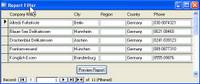
This form is based on the customers table from the Northwind sample database. The country field has been filtered to show only those customers located in Germany.
Now, place the following code behind the Preview Report button's On Click event:
DoCmd.OpenReport "rptCustomers", acPreview, , IIf(Me.FilterOn = True, Me.Filter, "")
Now, once the user clicks on the the Preview Report button, the report uses the filter property of the form, if a filter has been set.
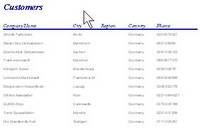

This report is now filtered using the same filter used on the form.
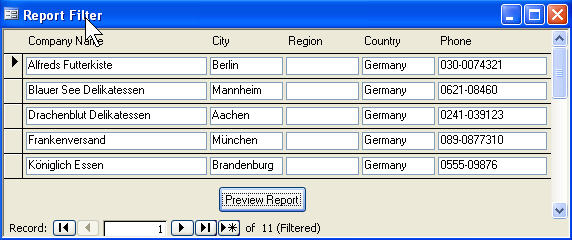
This form is based on the customers table from the Northwind sample database. The country field has been filtered to show only those customers located in Germany.
Now, place the following code behind the Preview Report button's On Click event:
DoCmd.OpenReport "rptCustomers", acPreview, , IIf(Me.FilterOn = True, Me.Filter, "")
Now, once the user clicks on the the Preview Report button, the report uses the filter property of the form, if a filter has been set.
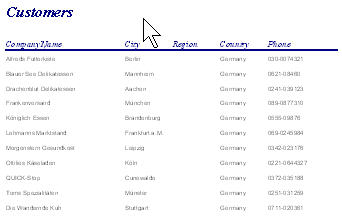

This report is now filtered using the same filter used on the form.
Tuesday, October 19, 2004
Lookout email search for Microsoft Outlook
Lookout email search for Microsoft Outlook - Lookout Software
Ok, one more on the software side of things - search Outlook for all those emails, contacts, and calendar items you thought you had lost!
You can use Lookout to search your:
This software was recently acquired by Microsoft and is tightly integrated with Outlook. Definitely worth checking out if you live and breath Outlook.
Ok, one more on the software side of things - search Outlook for all those emails, contacts, and calendar items you thought you had lost!
You can use Lookout to search your:
- Email messages
- Contacts, calendar, notes, tasks, etc.
- Data from exchange, POP, IMAP, PST files, Public Folders
- Files on your computer or other computers
- ... your wife's purse (okay, not true)
This software was recently acquired by Microsoft and is tightly integrated with Outlook. Definitely worth checking out if you live and breath Outlook.
Google Desktop Beta
How many times have you thought it would be great to be able to search your desktop as easily as Google searching the web?
Google Desktop Beta
- Find your email, files, web history and chats instantly
- View web pages you've seen, even when you're not online
- Search as easily as you do on Google
Google Desktop Beta
Ad Ware Removal and Detection
Lately, spam has taken a back seat to Ad Ware. What is Ad Ware and Spyware? Spyware and Adware is software made by publishers that allow them to snoop on your browsing activity, invade your privacy, and flood you with those horrible popups. If you are like most users on the internet, chances are you are probably infected with these applications. Unfortunately, most novice users don't know how to remove these pesky softwares. I've compiled a list of the software I recommend that can help you rid your computer of Ad Ware and Spyware.
While these programs are free, Ad-Aware has a professional version which does real-time monitoring - sort of like most firewall software. The free version is sufficient, but the professional version has some great tools that make it worth the upgrade price.
Ad-Aware
Spybot
HijackThis
These three are consistently the best reviewed in their categories, Spybot being the most prevalent. HijackThis uses a slightly different approach than Ad-Aware and Spybot. HijackThis scans your hard drives and registry for commonly used attack methods - not specific URLs and registry entrys like the other two. I would recommend loading all three. Several articles I have read indicate that Spybot and Ad-Aware will detect some entries the other doesn't.
More information and reviews can be obtained by reading:
CNET Spyware Reviews
Spybot Overview
While these programs are free, Ad-Aware has a professional version which does real-time monitoring - sort of like most firewall software. The free version is sufficient, but the professional version has some great tools that make it worth the upgrade price.
Ad-Aware
Spybot
HijackThis
These three are consistently the best reviewed in their categories, Spybot being the most prevalent. HijackThis uses a slightly different approach than Ad-Aware and Spybot. HijackThis scans your hard drives and registry for commonly used attack methods - not specific URLs and registry entrys like the other two. I would recommend loading all three. Several articles I have read indicate that Spybot and Ad-Aware will detect some entries the other doesn't.
More information and reviews can be obtained by reading:
CNET Spyware Reviews
Spybot Overview
Monday, October 18, 2004
What is XML?
Microsoft Office Assistance: XML for the uninitiated
XML for the uninitiated
A relatively common question in class these days - what is XML? Microsoft has provided support for it in most of their products, including, Office and SQL Server. XML really has revolutionized data distribution across the web. This article gives a very good overview in non techy terms.
XML for the uninitiated
A relatively common question in class these days - what is XML? Microsoft has provided support for it in most of their products, including, Office and SQL Server. XML really has revolutionized data distribution across the web. This article gives a very good overview in non techy terms.
Saturday, October 16, 2004
Free Virus Protection
One of the most common "excuses" I hear about not using virus protection is that it costs too much. After you buy the software, there are usually subscriptions you must pay for to keep your software up to date - preventing new viruses from attacking your computer. I have found this AVG Anti-virus to be one of the best virus protection programs available - and it's free for personal use.
What is RSS?
RSS is quickly becoming a new standard for reading news sites, blogs and other syndicated web sites. It's like a customized news reader. Click here to read an article on CNET that gives a good overview of RSS, how to use it, and what software you'll need to get started. Don't forget ... most blogs have a RSS feed. Add the link below to your RSS reader to receive the feed for this site.
http://dbageek.blogspot.com/atom.xml
I have found Pluck to be the best RSS reader. Best of all, it's FREE!
http://dbageek.blogspot.com/atom.xml
I have found Pluck to be the best RSS reader. Best of all, it's FREE!
Subscribe to:
Posts (Atom)
 Atom Feed (xml)